

1. Left Sidebar Contents
The left sidebar contains:- Brand
- Logo
- Search Button
- Navigation
- Action Buttons
- Sign In / Sign Up / Account / Upgrade
2. Setting the Logo
Skalven includes a dedicated and detailed guide for customizing the logo.Please refer to:
Logo Customization Guide
3. Configuring Navigation in the Left Sidebar
The left sidebar navigation is one of the core structural elements of Skalven.It supports:
- Navigation item grouping
- Section titles
- Dividers
- Custom icons
- Automatic icon matching
3.1 Adding a Navigation Item
- Open Settings → Navigation.
- Add a new item under Primary Navigation with a label and URL.
- Save your changes.
3.2 Adding Section Titles to Navigation
Section titles help organize your menu visually.- Open Settings → Navigation.
- Add a new item with a label starting with
#menutitle - Leave the URL field or add ###
- All navigation items listed below this title—until the next one—will be grouped under it.
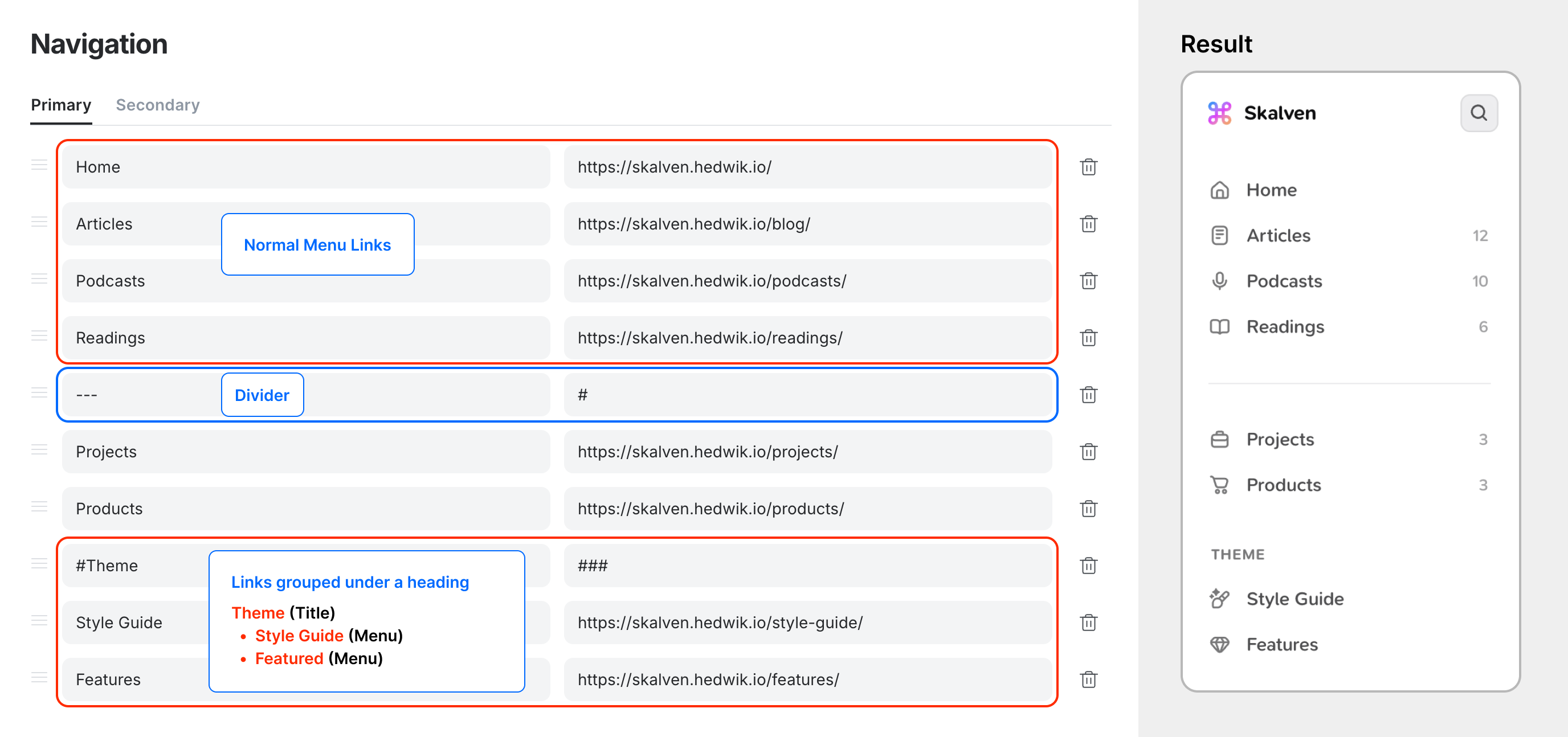
3.3 Adding Dividers Between Navigation Items
- Open Settings → Navigation.
- Add a new item with the label
---. - Leave the URL field empty.
- This will add a visual divider separating menu sections.
3.4 Adding Custom Icons to Navigation Items
Skalven supports custom icons via a helper function.- Open Settings → Navigation and create your menu items.
-
Check the URL slug used for the navigation link.
For example:/donate/→ slug:donate/gift/→ slug:gift
- Open Settings → Code Injection → Site Footer.
-
Add the script shown in for a single icon
or multiple
-
If you’d like to add icons to external links:
Icons for external links match by menu label, not by the menu
URL! - Save your changes.
3.5 Supported Built-In Icons for Navigation Menus
Skalven includes a large set of preconfigured icon keywords.These automatically apply icons to navigation items.