> ## Documentation Index
> Fetch the complete documentation index at: https://docs.hedwik.io/llms.txt
> Use this file to discover all available pages before exploring further.
# Post Templates
> Understand how Skalven’s custom post templates work and learn when to apply each one for Podcasts, Readings, Projects, and Product posts.
Skalven includes **five different post templates**, each designed for a specific type of content. Using the correct template ensures that your posts display with the proper layout and metadata.
### **Available Post Templates**
* **Default**
* **Post Podcasts**
* **Post Readings**
* **Post Projects**
* **Post Product**
***
## **1. What Are Post Templates?**
Post templates allow Skalven to display different types of content with their own unique layout.\
While the **Default** template is used for regular blog articles, the other four templates are designed specifically for the custom content types included in the theme:
* **Podcasts**
* **Readings**
* **Projects**
* **Products**
Each of these sections has its own custom design and features, so choosing the correct template is required for the post to appear correctly on both the homepage and the post detail page.
***
## **2. When Should You Use a Custom Template?**
If you create a post that belongs to one of the theme’s custom categories (Podcasts, Readings, Projects, or Products), you must:
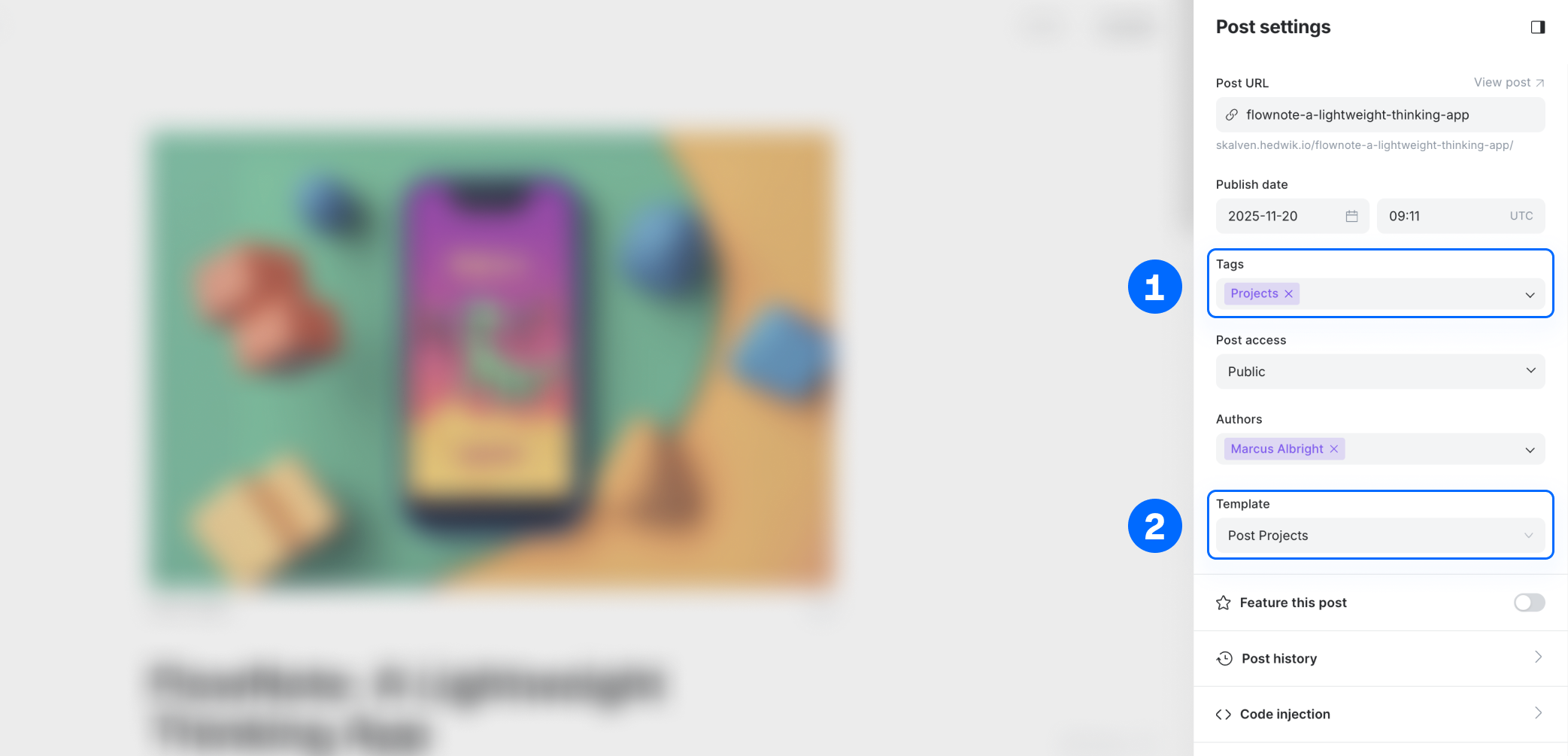
1. **Select the appropriate post template** from the Post Settings panel in Ghost.
2. Make sure that the post contains **only one relevant tag** (e.g., only `projects` for a project post).
 Otherwise, the post will fall back to the **Default** template, which is intended only for normal articles.
***
## **3. Example Scenario**
Let’s say you are creating a new post for your **Projects** section.
To display it correctly:
1. In the Post Settings panel, open **Post Template**.
2. Select **Post Projects**.
3. Ensure the post has only the`projects` tag applied.
After publishing, the post will automatically appear in:
* the **Projects homepage section**,
* the **Projects page**,
* and will use the **Post Projects template** on its detail page.
If the template is not selected, Ghost will show the post using the **Default** layout.
***
## **4. Regular Articles**
For normal blog posts (articles), you do **not** need to select any template.\
Simply publish your post, and Skalven will automatically use the **Default** template.
***
Otherwise, the post will fall back to the **Default** template, which is intended only for normal articles.
***
## **3. Example Scenario**
Let’s say you are creating a new post for your **Projects** section.
To display it correctly:
1. In the Post Settings panel, open **Post Template**.
2. Select **Post Projects**.
3. Ensure the post has only the`projects` tag applied.
After publishing, the post will automatically appear in:
* the **Projects homepage section**,
* the **Projects page**,
* and will use the **Post Projects template** on its detail page.
If the template is not selected, Ghost will show the post using the **Default** layout.
***
## **4. Regular Articles**
For normal blog posts (articles), you do **not** need to select any template.\
Simply publish your post, and Skalven will automatically use the **Default** template.
***